When people start your quiz and do not finish, the problem is rarely the whole quiz. It is usually one step: the first screen, one question, or the lead form. Find that step in your numbers, fix it, and leave the rest alone until you know it worked.
The four places people quit
Every quiz loses people somewhere. What matters is where, because each place has a different cause and a different fix. There are four places to look, in this order:
| Where they quit | What the numbers show | Look at first |
|---|---|---|
| Before question one | Many views, few starts | The title, the first screen and where the quiz sits on the page |
| At one question | The count of people who answered falls sharply at one question | That question: too hard, too personal or too long |
| At the lead form | Many answer the last question, few become leads | The fields you ask for and what you promise in return |
| After the result | Leads arrive, but few open or click the email | The result page and the follow-up email |
Start at the top and work down. If almost nobody starts, there is no point rewriting question six yet.
How to read your quiz funnel
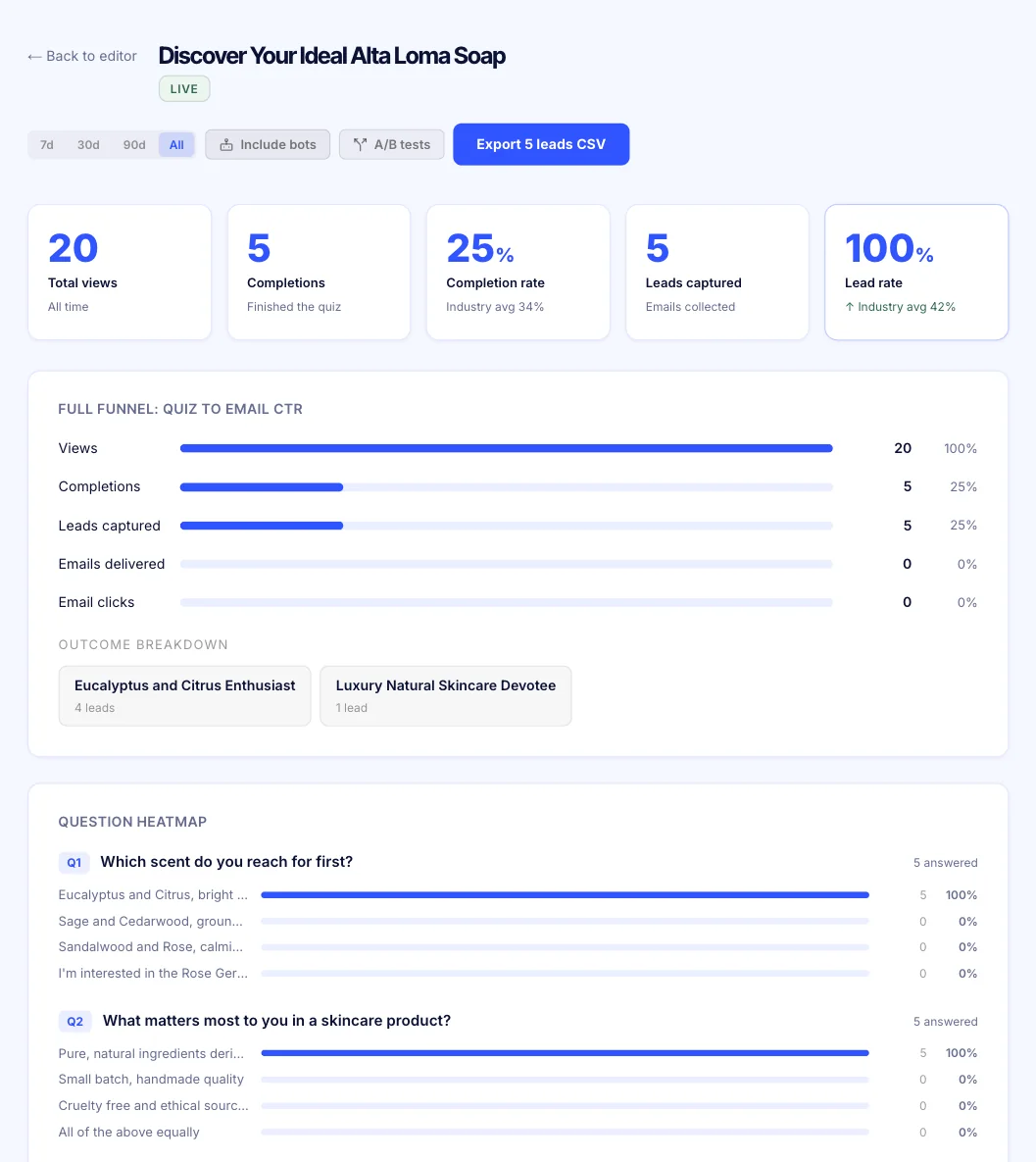
In Squarespell Quiz the numbers live in two places. Insights, Analytics shows every quiz you have published, with date ranges from Today to All time, plus Custom. The Dashboard has a Conversion funnel (views, started, completed, leads) and a Question drop-off panel with a menu to pick one quiz.

Read it like this:
- Pick one quiz. The totals for all quizzes mix a busy quiz with a quiet one. Use the quiz menu in the drop-off panel, or open that quiz’s own analytics page.
- Pick a date range that covers real traffic. Leave out the days you were still building and testing. Your own test runs count as views and completions too.
- Compare each step with the one before it. The step with the biggest loss compared with the step above is your leak. Ignore the others for now.
- Write down what you saw and the date. You will need it when you check whether your fix worked.

Small numbers swing a lot. With 20 views, one person is 5 percent of your traffic. Wait until a few dozen people have reached a step before you decide it is broken, and compare date ranges of the same length.
On the pricing page, read on October 28, 2026, question drop-off analysis and advanced analytics were listed on Pro, and Core had standard analytics. Every new account starts with 14 days of Pro features.
Few starts: fix the first screen
If plenty of people see the quiz but few answer question one, they decided in a few seconds that it was not worth it. They saw a title and a first question, nothing else. Check three things.
- The title names the result. “Find the menu that suits your evening” tells people what they get. “Take our quiz” does not.
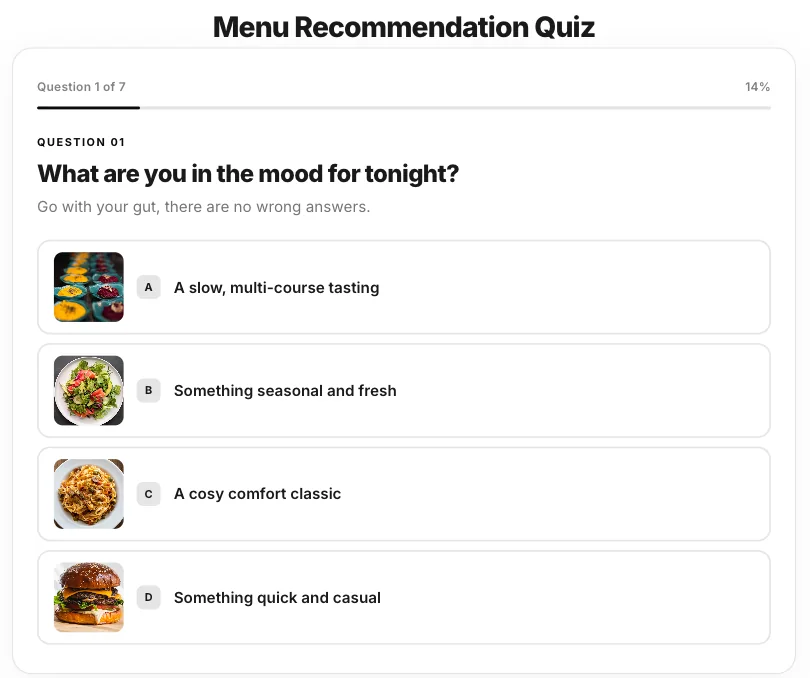
- Question one is easy. Make the first question something anyone can answer without thinking, ideally with pictures. Save the harder questions for later, when people have already put in some effort.
- People can see how long it is. A line such as “Seven quick questions” on the page, and the progress bar in the quiz, answer the silent question “how long will this take?”
Where the quiz sits matters as much as what it says. A quiz at the bottom of a long page, or on a page few people visit, gets views without intent. Our guide to the quiz landing page covers what to put above question one. If you added the quiz with Publish to website, you can change the pages it appears on and its placement (Floating tab, Popup or Inline) from the app later, without opening Squarespace.
A question that loses people
Open the quiz’s analytics and scroll to the question heatmap. Each question shows how many people answered it. Read the counts from top to bottom. A slow, steady fall is normal. A sharp fall at one question is the one to fix. The Question drop-off panel on the Dashboard shows the same thing as a figure next to each question.
Most problem questions fail in one of three ways:
- Too hard. The visitor does not know the answer, for example a technical term or a choice they have never thought about. Rewrite it in their words, or add an answer such as “Not sure yet”.
- Too personal, too early. Budget, age, income or health questions feel intrusive before trust is built. Ask them later, offer ranges instead of exact numbers, or cut them if your result does not depend on them.
- Too long. A question with long answer text or too many options takes effort on a phone. Shorten the answers to a few words and keep the options to the ones that change the result.
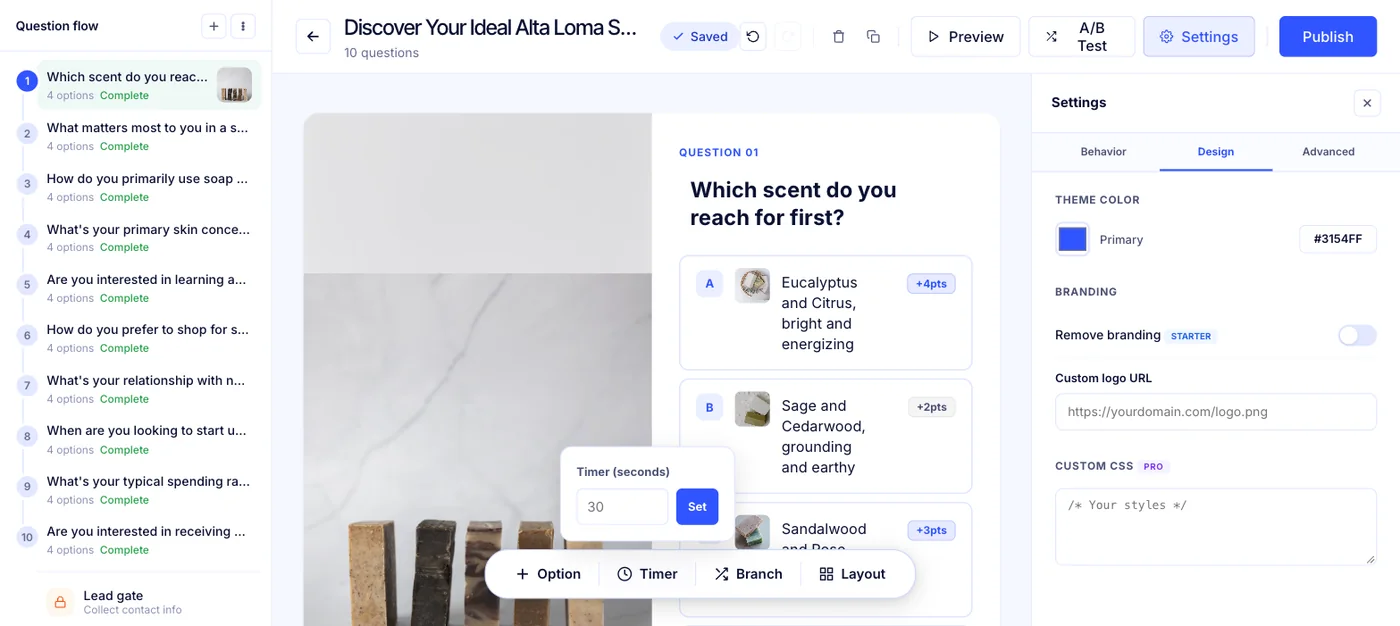
One thing to watch when you cut a question: in a scored quiz, every answer adds points, and each outcome has a score range. Remove a question and the highest possible total goes down, so check that every outcome can still be reached. Our guide on how many questions a lead quiz should have has a test for deciding which questions to keep.
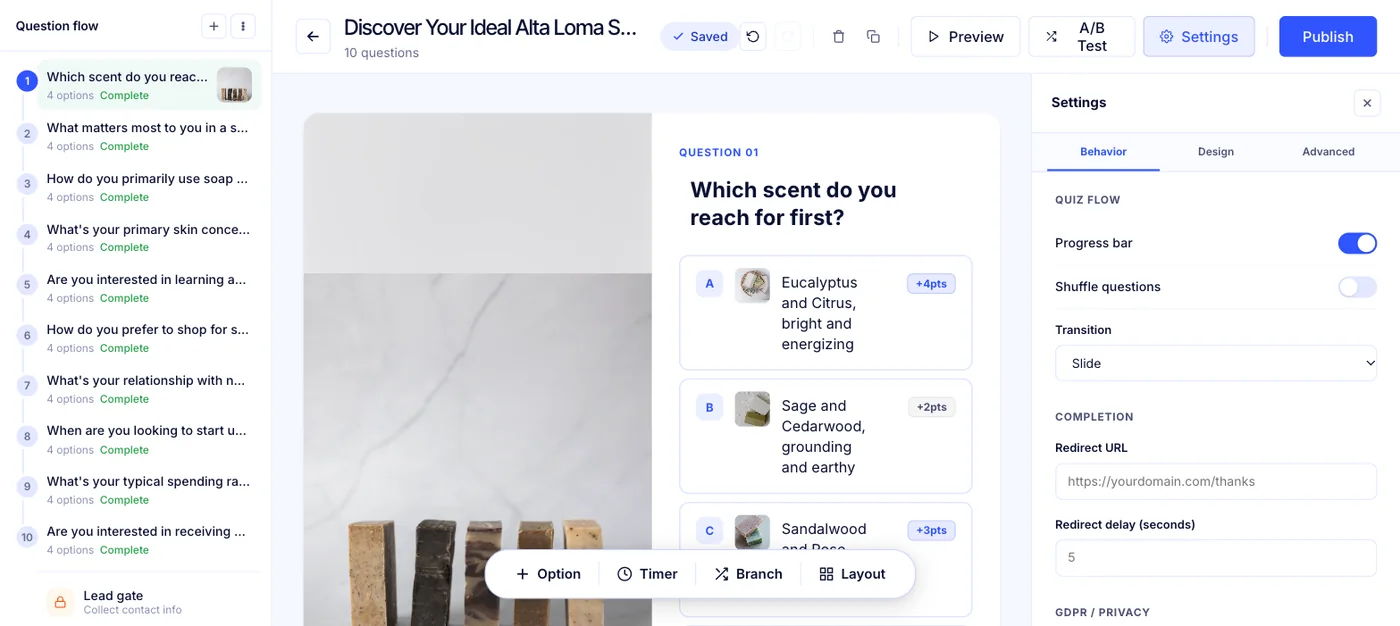
Also check that the progress bar is on. It is a switch under Settings, Behavior, and it shows people how far they have come, which helps most in the middle of the quiz.
The lead form: people finish and still leave
Compare two numbers: how many people answered the last question in the heatmap, and how many leads were captured. If many people reach the end and few leave their details, the quiz did its job and the lead form did not.
The lead gate has four parts you can check: a headline, a short text, the fields, and a button label.
- Ask only for what you will use. Each field has a Req box. If you will never write to people by name, do not require a name. Every required field is one more reason to stop.
- Say what they get. “Enter your email to see your recommended dishes and a welcome offer for your first visit” is a clear trade. “Sign up to continue” is not.
- Name the result on the button. “Show my menu” is better than “Submit”, because it repeats the promise at the moment of the click.

After you change the lead gate, open the live quiz yourself and go through to the form to check that the new text and fields show. Your test run will appear in the numbers, so note it. For more on what to offer in exchange for an email, see how to create a quiz lead magnet.
After the result: the email nobody opens
The funnel for a single quiz does not stop at leads. It goes on to emails delivered and email clicks. If leads are coming in but few people click, the quiz is not the problem. Look at the result page and the email that follows it.
- The result should feel earned. A result that repeats back what people answered, and recommends one next step, is easier to act on. Our guide to quiz result pages that convert walks through it.
- The email should continue the result. Use the result name in the subject line and give the one next step again. There are examples in our follow-up email templates.
Change one thing at a time
When you find the leak, fix that one thing and nothing else. If you rewrite the title, a question and the lead form in the same week, you will not know which change helped, or which one hurt.
- Write down the step and its numbers today.
- Make one change and note the date.
- Wait for real traffic. Give it at least as many visitors as you had before the change.
- Compare the same step over a date range of the same length, using Custom in Analytics.
- Keep it or undo it, then move to the next leak down the funnel.
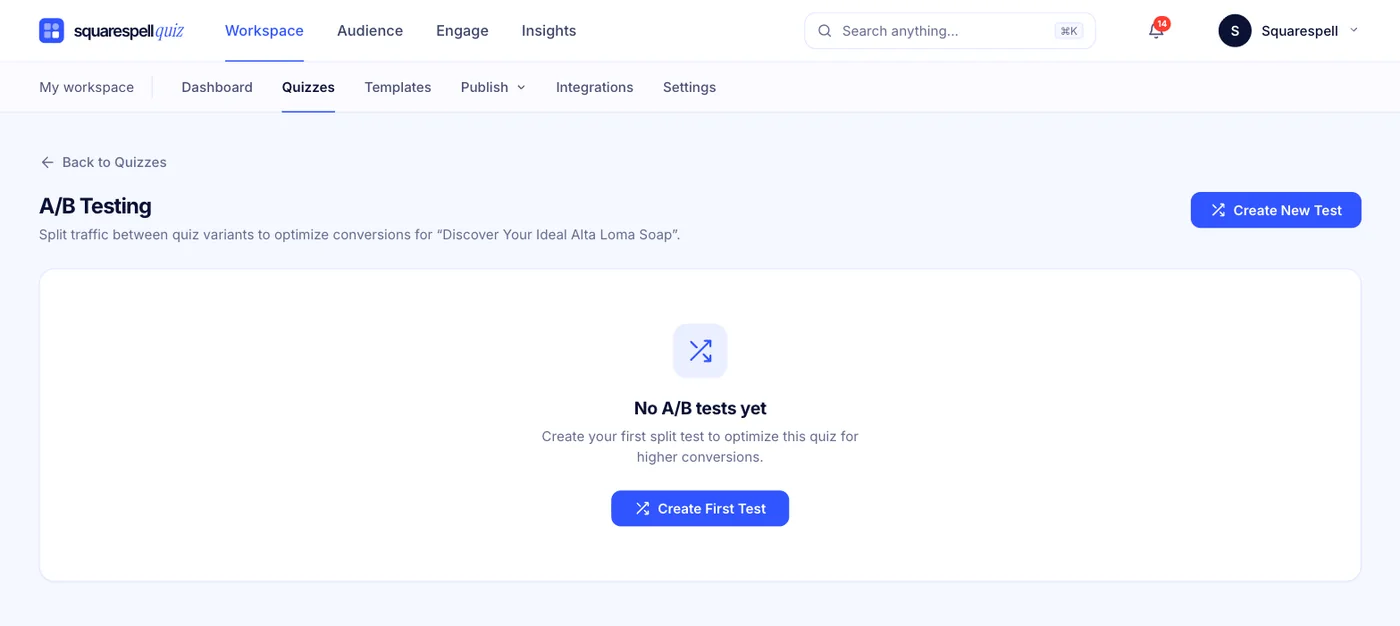
If your traffic is high enough to split, the quiz editor has an A/B Test button. On Pro and Business it lets you test two versions of a quiz and keep the winner, as the features page describes it.
Your next step
Open your analytics, pick your busiest quiz and find the single step with the biggest loss. That is your fix for this week. If you have not built a quiz yet, start from one of the quiz templates, which come with questions, a lead gate and outcomes already set, so you can spend your time on the parts above. You can start a free trial and compare plans on the pricing page.
How this guide was checked. The pricing, features and changelog pages of squarespellquiz.com were read on October 28, 2026. The app screens come from our reviewed screen library, captured October 3 and 4, 2026, and the changelog shows no change to these parts of the app since then. The analytics screens show test data from demo quizzes. No completion, drop-off or lead rates are claimed as typical. Nothing was built or changed in the app for this guide: A/B testing, question timers and reordering questions were not tested.