A Typeform quiz goes onto a Squarespace page through a Code block: you copy the embed code from Typeform’s Share panel and paste it into the page. That only works on a Squarespace plan that runs JavaScript in Code blocks. After that, most of the trouble people report comes from three places: the fixed header, the way Typeform opens on phones, and which Typeform plan unlocks result pages and result emails. Each one has a fix below, taken from Typeform’s and Squarespace’s own help pages.

What you need before you start
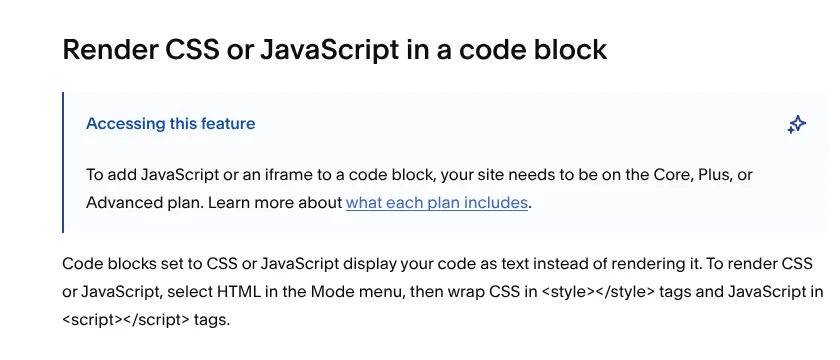
- The right Squarespace plan. Squarespace’s help center says: “To add JavaScript or an iframe to a code block, your site needs to be on the Core, Plus, or Advanced plan” (Code blocks, read October 13, 2026). Its custom code page adds “some legacy billing plans”. Typeform’s embed code is JavaScript, so on any other plan it will not run.
- A published typeform. Typeform’s embed steps start from a published form, and Typeform says embedded forms only load on HTTPS pages.
- A plan for the result. Decide now whether people should see a result screen inside Typeform, land on a result page on your own site, or get a result email. Those three choices depend on your Typeform plan (see the cost section below).
If your Squarespace plan cannot run scripts, there is still a simple route: add a normal Squarespace button and link it to your typeform’s share link. The quiz then opens on Typeform’s own page instead of inside yours.
Step 1: Copy the embed code from Typeform
This follows Typeform’s help article Embed your form on Squarespace, read October 13, 2026.
- Open the form in your Typeform workspace and make sure it is published.
- Click Share in the top menu, then Embed in a web page.
- Choose an embed mode. Typeform offers Standard, Full page, Popup, Slider, Popover and Side tab. Full page is the one that does not work here: Typeform says “it’s not possible to embed your form as a full page as Squarespace does not allow you to add an HTML-only page.”
- Set the size in the right panel. For a Standard embed, Typeform’s troubleshooting guide recommends “an embed height of at least 500px”.
- Click Start embedding, choose Squarespace in the dropdown and click Copy.
You only do this once per placement. Typeform’s embed guide says you do not have to re-embed after editing the form, as long as you click Publish edits. You can also keep several embed codes for one form, for example a popup for one page and a standard embed for another.
Step 2: Paste the code into a Squarespace Code block
- Edit the page in Squarespace and click Add block (or +) where the quiz should go, then choose Code.
- Delete the sample code Squarespace puts in a new Code block. Typeform warns that it will show on your page if you leave it.
- Paste the Typeform code. Keep the Code block’s Mode set to HTML: Squarespace only renders scripts in HTML mode.
- Save, then check the page in a private window where you are not logged in.
If you see “Script Disabled” or nothing at all
- Script Disabled while editing. Typeform calls this “just a Squarespace security measure”. Squarespace says code in a Code block sometimes does not appear while you are logged in, even when visitors can see it.
- Blank on the live page. Squarespace lists two causes: the page sits inside an index page, or Ajax loading is on. Its fix is to take the page out of the index, log out and check, then turn off Ajax loading if it still fails.
- An empty white square. Typeform says this means the page space loaded but its script did not. A plain iframe is its fallback, but then you only get a standard embed, without popups or launch options.
Fix: the Squarespace header covers the quiz
This is the most common complaint. In one Squarespace forum thread from 2023 the site header covered an embedded typeform on phones, and the accepted answer hid the header on that page with custom CSS.
Typeform’s troubleshooting guide explains why it happens: popups, sliders and the mobile view use “a default z-index of 1000”, so anything on your page with a higher layer, like a fixed header, can sit on top.

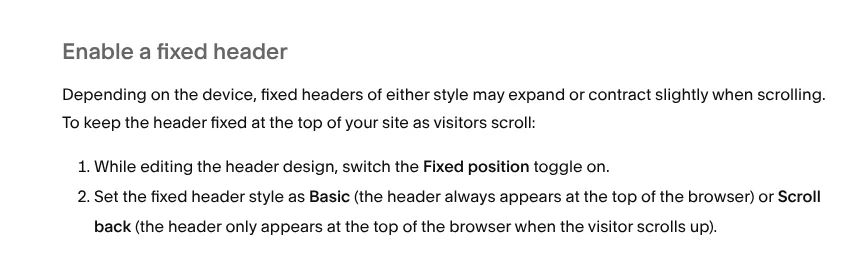
Before touching code, try the two settings Squarespace already has (Build your site header, read October 13, 2026):
- Stop the header from following the visitor. In the header’s Edit Design panel, switch off Fixed position, or set it to Scroll back so the header only appears when the visitor scrolls up.
- Hide the header on the quiz page only. In the Pages panel, open the page settings, go to Navigation and turn off Show Header. Blog and store pages do not have this option.
For a side tab or popover that shows underneath your content, Typeform suggests placing the embed code at the very end of the page and giving it a higher z-index than the header. That is custom CSS, which neither Squarespace nor Typeform support will troubleshoot for you.
Fix: the quiz looks wrong on phones
Two different things cause this. The first is Typeform’s own default: “By default, Typeform displays embedded forms on mobile as full-screen pop-ups”, with a start screen showing the form name and a launch button. If you would rather show the quiz inside the page, Typeform gives two options:
- Standard embed: turn off the Full-screen on mobile switch on the Design tab before you copy the code.
- Edit the code: add
data-tf-inline-on-mobileright after thedata-tf-liveattribute, and set the embed height to Auto, as Typeform recommends for inline mobile embeds.
<div data-tf-live="ABCDEF" data-tf-inline-on-mobile></div>That line is Typeform’s own example. Your form ID replaces ABCDEF; keep the rest of the code you copied.
The second cause is the Squarespace layout. Fluid Engine keeps a separate mobile layout, and blocks added after it was edited are placed for you. In a forum thread from December 2022, a typeform scrolled under other page elements on phones, and the advice was to fix the mobile layout. Open the page, click Edit, then the Mobile View icon, and move or resize the Code block with the arrows (Design mobile page layouts in Fluid Engine).

Open the quiz from a button or a popup
A quiz does not have to sit in the middle of a page. Typeform’s embed modes cover the usual options:
- Popup and Slider. Typeform adds its own button. You set the button text (up to 24 characters), its color and corner rounding, and for a Slider whether it comes in from the left or the right.
- Popover and Side tab. A small button (Popover) or a tab with your own text (Side tab) that opens the quiz.
- Launch options. Typeform’s advanced embed guide lets a Popup or Slider open on page load, on exit intent, after the visitor scrolls 30, 60 or 90 percent of the page, or after a delay.
To keep your own Squarespace button style, link a regular Squarespace button to the typeform’s share link instead. The quiz then opens on Typeform’s page rather than over yours. For where a quiz works best on a site, see where to place a quiz on your website.
Scores, outcomes and result pages
Typeform has two kinds of quiz, explained in its help article on Outcome quiz and Score quiz:
- Outcome quiz. Each answer is linked to an ending, and the respondent sees the ending that matches their most common response. It suits product finders and personality quizzes.
- Score quiz. Answers carry points, each ending has a score range, and the total decides the ending. It suits lead segmentation and knowledge checks.
Either way, the result appears on an End Screen inside Typeform. To send people to a result page on your own Squarespace site, you need a redirect, and Typeform’s End Screens and redirects article says: “If you’re on a Plus plan or above, you can redirect your respondents to different webpages based on their answers.” The redirect address must start with https.

If you do build result pages on Squarespace, our guide to quiz result pages that turn into bookings covers what to put on them.
Sending a different email for each result
Typeform has a built-in way and a Zapier way.
- Built in: Contacts and Automations. Typeform’s help article on emails to respondents says this add-on is available on the Plus, Business, Talent, Growth Custom and Enterprise plans, and included in Growth Flow. One trigger sends an automation “when a respondent lands on a specific Ending screen”, so one automation per ending gives each result its own email. The form needs an Email question. Without your own email domain, you cannot change the sender name or address, and email metrics are not tracked.
- Zapier. Typeform’s article on notification emails based on score builds one Zap per score range, each with a Filter step and an email action. It works, but you maintain one Zap for every result.
Whichever you choose, the emails themselves matter more than the tool. Our follow-up email templates after a quiz give you a starting point.
What it costs on Typeform’s plans
Prices read on Typeform’s pricing page on October 13, 2026, in US dollars, billed monthly. Plans change, so check the page before you buy.
| Plan | Billed monthly | Responses a month | What it adds for this setup |
|---|---|---|---|
| Basic | $39 | 100 | Embed and conditional logic. No redirects to your own pages and no Contacts and Automations add-on. |
| Plus | $79 | 1,000 | Redirects to result pages on your site, the add-on (from $25 a month for 2,400 actions), no Typeform branding. |
| Business | $129 | 10,000 | Drop-off rates and conversion tracking. |
| Growth Flow | $379 after a 14-day trial (card required) | 10,000 | Contacts and Automations included, email and text follow-ups. |
With yearly billing the same page showed Basic at $28, Plus at $56 and Business at $91 a month. Typeform also has a free plan with a limited number of responses.

Stay with Typeform or switch?
Stay with Typeform if you already run other forms and surveys on it, if you depend on its integrations (its pricing page lists Zapier, Airtable, Google Sheets, HubSpot, Mailchimp, Slack, Calendly and Salesforce, among others), or if the quiz is one part of a bigger form setup. The fixes above are a one-time job.
Look at a Squarespace-first quiz tool if the header, phone and plan workarounds are most of your work. Squarespell Quiz connects to a Squarespace site once, with one loader line in Code Injection (Squarespace offers Code Injection on Core, Plus, Advanced and some legacy plans). After that you publish each quiz from the app as a floating tab, a popup or an inline section, and the quiz takes your site’s colors and font.
An inline quiz needs one short slot line in a Code block for each new location. Result emails and per-outcome email sequences are built in. The side-by-side details are on Squarespell Quiz vs Typeform, and the Squarespace setup is on the Squarespace quiz builder page.
Skip the quiz if all you need is a name, an email and a message. A plain form block may be enough, as explained in Squarespace form block vs a quiz.
To try the Squarespace-first route, start a free trial or see the plans.