A Squarespace lead magnet has four parts: a free file, a sign-up block that collects the email, a delivery step that sends the file, and a spot where visitors see the offer. Squarespace’s own tools cover all four. Delivery is where most setups break, so this guide spends the most time there.
The four parts at a glance
Every working Squarespace lead magnet uses the same four parts, and each one maps to a Squarespace tool you may already have. The table shows which tool does which job and what Squarespace’s help center says about plans and limits, read on November 4, 2026.
| Part | Squarespace tool | Limit or plan note (read November 4, 2026) |
|---|---|---|
| 1. The freebie | A file uploaded through the link editor | Each file 20 MB or smaller, one file per link |
| 2. The sign-up | Newsletter block or form block | Mailchimp and Zapier storage need Core, Plus, Advanced or some legacy plans |
| 3. Delivery | Post-submit redirect, or an Email Campaigns automation | Automations work on all current Email Campaigns plans |
| 4. Visibility | Promotional pop-up, a page section, a button | Pop-ups are on Core, Plus and Advanced |
The pages that rank for this search each walk through one route, usually a hidden download page plus a welcome email. This guide puts all three of Squarespace’s delivery routes side by side on one checklist, with every limit taken from Squarespace’s help center on the day it was written, so you can pick the route that fits your plan before you build anything.
Step 1: Make the freebie
A lead magnet works when it solves one small problem fast, so make the file short enough to use in one sitting. A one-page checklist, a pricing guide, a template or a short planning worksheet all work. A 40-page ebook usually does not, because people sign up, never open it and forget who you are.
- Pick one question your buyers ask before they hire you. A wedding photographer might answer “how many hours of coverage do we need?” A bookkeeper might answer “what do I need ready for tax season?”
- Export it as a PDF. Squarespace’s guide to uploading files says each file needs to be 20 MB or smaller and that “Form functions in .pdf files don’t work after you upload the file to your site.” If your worksheet has fillable fields, link to a copy people can download and fill in elsewhere.
- Several files? Each link holds one file, so zip them together, as long as the zip stays under 20 MB.
- Name the file for the reader. The file name shows in the browser tab and becomes the saved file name, so “wedding-coverage-checklist.pdf” beats “final-v3.pdf”.
If you are still choosing what to offer, our list of lead magnet ideas for 12 kinds of small business has starting points by industry.
Step 2: Collect the email with a newsletter or form block
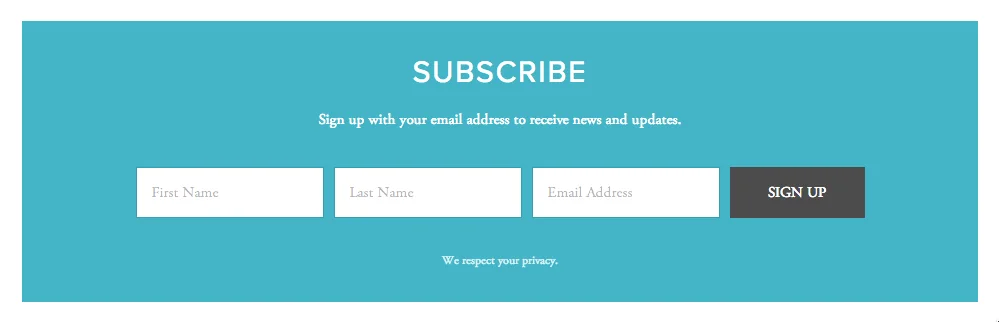
Use a newsletter block when you only need a name and an email, and a form block when you need one more answer, such as the service someone is interested in. Both can save sign-ups to a Squarespace mailing list, and both decide which delivery route you can use in Step 3.
Set up a mailing list first
- Open the Lists & Segments panel and click Create Mailing List. Squarespace allows up to 20 mailing lists, according to its Build mailing lists guide.
- Give the list the name of the freebie (“Coverage checklist”), so you can tell later who joined for what.
Building lists is one of the Email Campaigns features Squarespace’s Email Campaigns FAQ lists as free, along with draft campaigns. Sending email to the list needs an Email Campaigns plan.
Option A: the newsletter block
- Edit the page, click Add block and choose Newsletter.
- In the Content tab, write the Title and Description about the file, not about your newsletter: “Get the wedding coverage checklist” works better than “Subscribe”. Switch on Show Name Field if you want first names for the email greeting.
- Open Storage, click Squarespace and choose your mailing list.
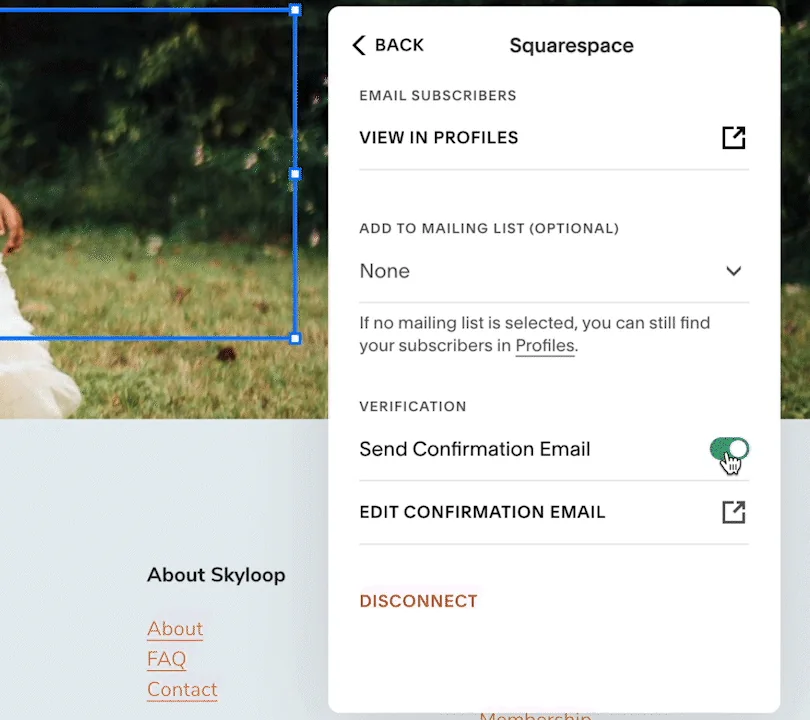
- Under verification, keep Google reCAPTCHA on, and decide whether to also send a confirmation email (see the callout below).
- Save.
Option B: the form block
- Add a Form block and keep the Email field, then switch its Required toggle on. Squarespace’s Form blocks guide says a required email field is what adds people who submit to your Contacts panel.
- Add your extra field, for example a dropdown for the service.
- Switch on Email Signup if you also want to offer your newsletter. Only people who tick the box appear under Subscribers.
Step 3: Deliver the file automatically
Squarespace gives you three ways to hand over the file, and the right one depends on whether you pay for Email Campaigns and how much you trust a fake email address. Here they are on one checklist, every line from Squarespace’s help center, read November 4, 2026.
| Redirect to the file | Welcome automation | Form reply automation | |
|---|---|---|---|
| Works with | Newsletter block or form block | Newsletter block, pop-up, any mailing list sign-up | Form block with a required email field |
| Needs Email Campaigns | No | Yes | Yes |
| File arrives by | Opens right after submit | ||
| Fake email still gets the file | Yes | No | No |
| Can add follow-up emails | No | Yes, up to 15 in a series | Yes, up to 15 in a series |
Route 1: redirect straight to the file
The fastest route needs no email tool at all. Both block guides say the post-submit Redirect can send people “to a page on your site, an external site, or an uploaded file.”
- Edit the block, open Post-Submit, click Redirect, then Attach Link.
- Choose File and upload the PDF, or link to a thank-you page that holds a download button.
- Test it while logged out. Squarespace notes that “Post-submit redirects won’t work while logged into your site.”
The trade-off: anyone can type any address and still get the file, so your list collects some junk. A thank-you page is usually better than a bare file, because you can add one line about what to do next, like booking a call.
Route 2: a welcome automation for newsletter sign-ups
Squarespace’s guide to building automated campaigns says subscriber automations “send after someone submits a newsletter block or joins a mailing list,” and that you “can build automations on all current Email Campaigns plans.” Some older guides that rank for this search still say you need a higher Email Campaigns tier for automations, so check the current page before you upgrade.
- Open the automations dashboard (on a computer: Squarespace says you can’t create or edit automations in its app).
- Click Create automation and choose the Welcome new subscribers preset.
- Connect the trigger to the mailing list you made in Step 2.
- Set the time delay to No delay, so the email goes out right away.
- Edit the email: a short subject (“Your coverage checklist is here”), one sentence of thanks, and a button that links to the file or to the thank-you page. Send yourself a test.
- Click Go live. Squarespace notes that later edits only reach new subscribers, not people already in the sequence.
Route 3: a form reply automation for form blocks
If you used a form block, choose the Reply to form submission preset instead. Squarespace says form response automations send “after someone submits a form block, if the email field is required.” The steps match Route 2: link the file in the email, set no delay, go live.
Whichever email route you pick, remember that automated emails count toward your monthly sends. Squarespace says that at the limit automations pause, and people who would have received emails while they were paused “won’t get them, even after the automation is live again.”
Where to keep the file
Many guides tell you to put a download page in the Not linked section and call it hidden. Squarespace’s own Not linked guide says those pages “are public by default” and that “Search engines can also index Not linked pages.” If you do not want the download page in search results, use one of the options it lists: hide the page from search engines, add a password, or disable it.
Step 4: Put the offer where people see it
A lead magnet only grows your list when visitors see it at the moment the topic is on their mind, so place it next to related content rather than only in the footer. Squarespace gives you three main places.
- A promotional pop-up. Squarespace’s promotional pop-up guide says pop-ups are available on Core, Plus and Advanced plans. Choose the Sign up for a newsletter action and the mailing list, then set it to show on a timer, after a scroll depth, or both, on any first page or only certain pages. The newsletter pop-up cannot collect names, so if you greet people by name, use a button that links to a page with a newsletter block instead.
- A section on the pages that match the freebie. A checklist about coverage hours belongs on the pricing page and the wedding gallery, not on About.
- A button in blog posts. Link it to a small landing page with the block, so you can share the same link on social media.
Our guide on where to place a quiz on your website covers placement in more depth, and the same logic applies to a PDF offer.
Test it like a stranger would
Test the whole path from a private browser window with an email address that has never signed up, because Squarespace treats repeat and logged-in tests differently. When something does not arrive, these are the usual causes, each from Squarespace’s help center.
- You tested while logged in. Post-submit redirects do not run for a logged-in owner.
- Your site is on a trial. Confirmation emails, including tests, do not send on trial sites.
- The subscriber has not confirmed yet. With a confirmation email on, people join the list only after they click it. Squarespace’s Newsletter blocks guide lists unconfirmed sign-ups, repeated sign-ups and addresses already on the list as the reasons subscriber numbers and submissions differ. Squarespace does not say on that page whether a welcome automation waits for the confirmation click, so check one test sign-up end to end.
- The automation is not live. Edits keep it paused until you click Go live again.
- You hit the monthly send limit. Automations pause and skipped people do not get the email later.
- The link opens the wrong thing. Open the email on a phone and tap the button. A PDF over 20 MB will not upload at all.
When a quiz works better than a PDF
A quiz is the better lead magnet when the right answer depends on the visitor, because it gives each person a result that fits them and tells you which result they got. A checklist is the same for everyone. A quiz that asks five to seven questions about budget, timeline and style can point a couple to the right photography package and show you that answer next to their email.
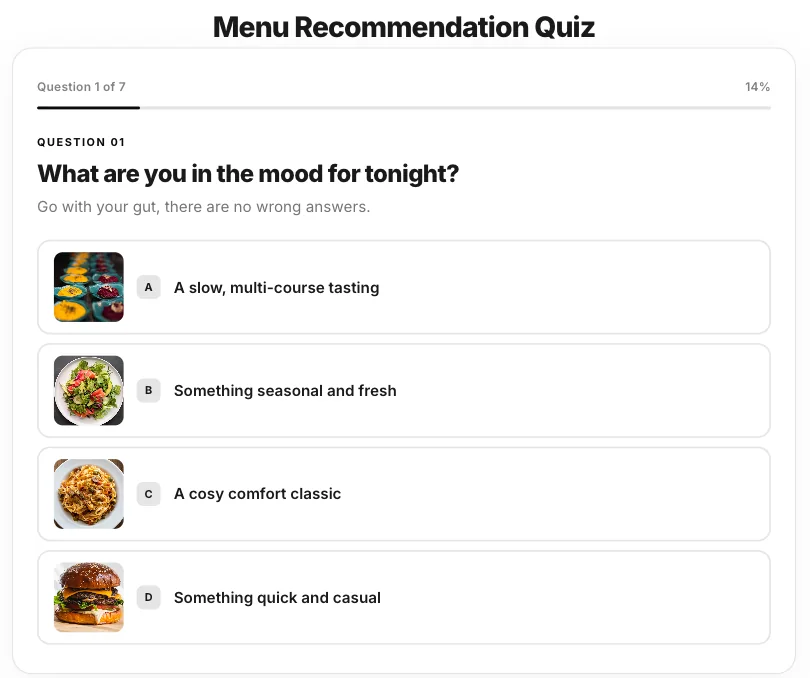
Squarespace has no quiz feature (we went through what it can and can’t do in does Squarespace have a quiz feature?), so a quiz comes from a separate tool. In Squarespell Quiz, the email step sits between the last question and the result, as a lead gate with email and name fields.

Be clear about the differences before you switch:
- Delivery is built in. Our pricing page lists a result email to every lead on every plan, so you do not need a separate automation to hand over the result.
- The leads live in the quiz tool. Quiz leads do not flow into a Squarespace mailing list on their own. You export them as a CSV and import them, as explained in can quiz leads go into Squarespace Email Campaigns?
- Publishing takes one setup step. You connect your website once by pasting one loader line into Squarespace’s Code Injection, which needs a plan that includes it, then use Publish to website to show the quiz as a floating tab, a popup or inline on the pages you choose.
- It costs more than a PDF. If your answer is the same for every visitor, the native route above is free with the tools you already pay for, and it is the better pick.
For the full quiz build, read how to create a quiz lead magnet for your website, and for the form versus quiz decision, Squarespace form block vs a quiz.
Questions people ask
Can I make a lead magnet without paying for Email Campaigns?
Yes. Use a newsletter or form block with a post-submit redirect to the file, which needs no email plan. You can build mailing lists for free, but emailing the file or sending follow-ups needs an Email Campaigns plan or another email tool.
Which Email Campaigns plan sends a lead magnet automatically?
On November 4, 2026, Squarespace’s automations guide said you can build automations on all current Email Campaigns plans. Plans differ in how many emails you can send each month, so pick one with room for every automated email. Read the current plans on Squarespace’s Email Campaigns pricing page before you buy.
Why is my Squarespace lead magnet email not arriving?
The most common reasons are testing while logged in, a site still on a trial, a subscriber who has not clicked the confirmation email, an automation that is not live, or a used-up monthly send limit. Test from a private window with a new address after the site is out of trial.
Can people find my lead magnet download page on Google?
They can if you do nothing. Squarespace says Not linked pages are public by default and can be indexed. Hide the page from search engines, add a password, or deliver the file only by email.
Should I use Mailchimp or Flodesk instead of Email Campaigns?
Use them if you already run your newsletter there. A newsletter block can store sign-ups in Mailchimp on Core, Plus, Advanced or some legacy plans. Tools that are not storage options in the block use their own sign-up form, so follow that tool’s guide for adding it to Squarespace.
Is a quiz a better lead magnet than a PDF for a small business?
It is when visitors need a different answer each, such as which package, product or plan fits them. When everyone needs the same answer, a short PDF is simpler and cheaper. Our post on contact forms vs quiz funnels covers how the two kinds of leads differ.
Your next step
Pick one freebie, build Route 1 today, and add the welcome email when you are ready to pay for Email Campaigns. If your buyers need different answers, browse the quiz templates or start a free trial and compare plans on the pricing page.