To embed a quiz on Squarespace you need the Core, Plus or Advanced plan, or an older Business or Commerce plan. Those are the plans that run JavaScript in a Code Block and include Code Injection, and almost every quiz embed needs one or the other. On the Basic plan neither is available, so the quiz can’t run inside your pages, but a normal button that links to the quiz still works.

The short answer, plan by plan
Squarespace sells four website plans today: Basic, Core, Plus and Advanced. Older sites can still be on a legacy plan. This table sums up what each one allows for a quiz, based on Squarespace’s pricing page and help center as read on October 17, 2026.
| Plan | Scripts or iframes in a Code Block | Code Injection | What works for a quiz |
|---|---|---|---|
| Basic | No | No | A button or text link to the quiz |
| Core, Plus, Advanced | Yes | Yes | Inline, popup, floating tab or a link |
| Legacy Business, Commerce Basic, Commerce Advanced | Yes | Yes | Inline, popup, floating tab or a link |
| Legacy Personal | Not in its listed features | Not in its listed features | A link, unless your site shows Code Injection |
| 14-day trial | Yes, for most custom code | Yes, except the lock screen | Everything, for testing; the site is private |
The rest of this guide explains each row, shows how to tell what your quiz code needs, and covers what to do if you are on Basic.
What the Basic plan allows, and what it blocks
The Basic plan still has a Code Block. Squarespace’s custom code guide says: “On all plans, code blocks support plain text, HTML, Markdown, and CSS code surrounded by <style></style> tags.” What Basic lacks is the part a quiz needs.
- No JavaScript or iframes in a Code Block. Squarespace’s Code blocks guide (last updated October 9, 2026) says: “To add JavaScript or an iframe to a code block, your site needs to be on the Core, Plus, or Advanced plan.”
- No Code Injection. The code injection guide (last updated September 16, 2026) says: “Code injection is available in the Core, Plus, Advanced, and some legacy billing plans.”
The pricing page shows the same split. In the comparison table, “Code block (basic)” is described as HTML, plain text, Markdown or CSS and is ticked on every plan. “Code block (advanced)”, described as CSS, HTML, iFrames and JavaScript, and “Code injection” are ticked only on Core, Plus and Advanced. The plan cards say it in one line: Core and above list “Complete customization with CSS and Javascript”, and Basic does not.
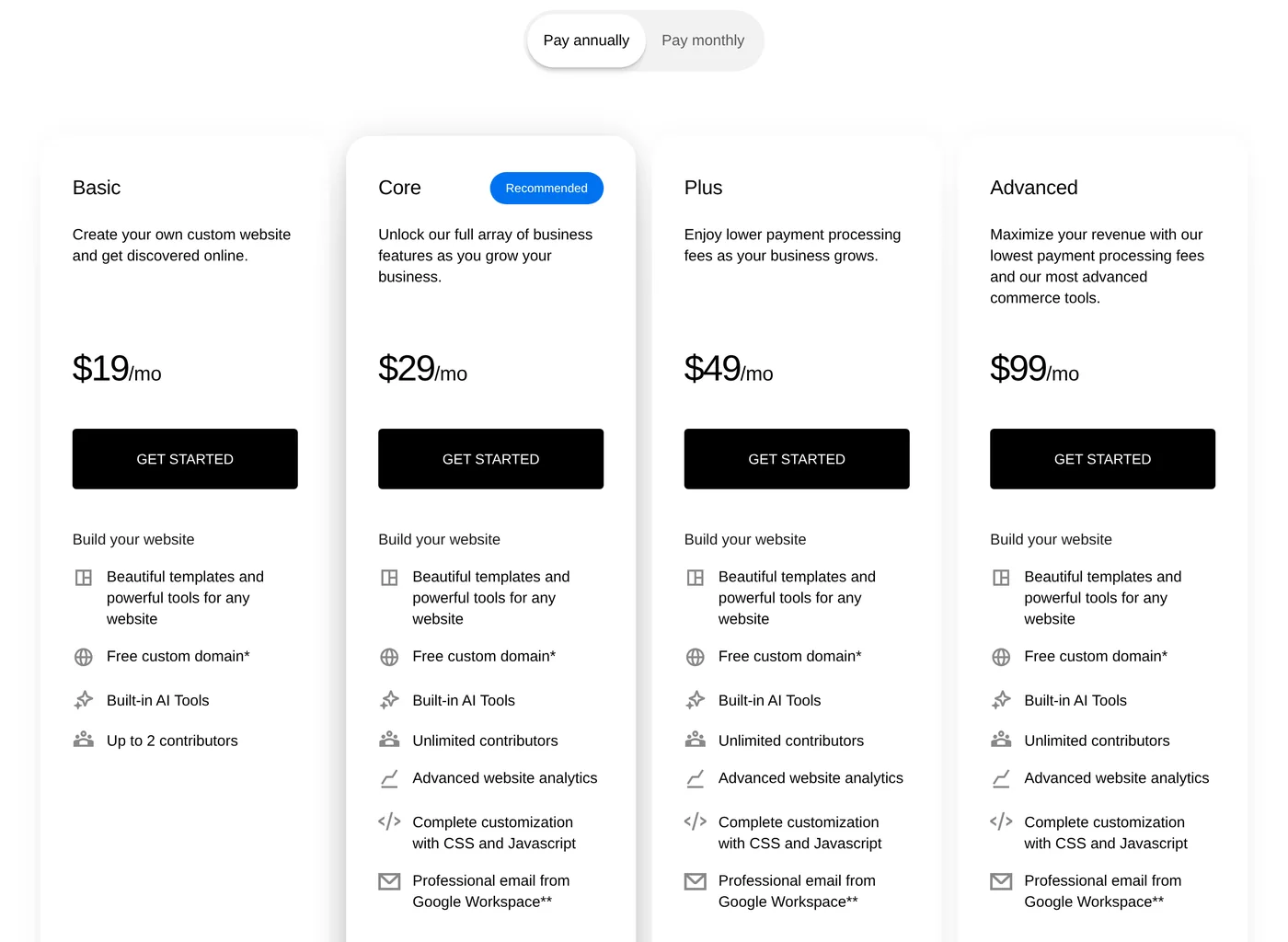
Squarespace’s pricing page has the current prices for each plan, monthly and annual.
How to tell what your quiz code needs
You don’t need to know how a quiz tool works to check this. Open the embed code or install line it gives you and look for two things:
- A <script> tag. That is JavaScript. In a Code Block it needs Core or above, and pasted into Code Injection it needs a plan with Code Injection.
- An <iframe> tag. Squarespace treats iframes the same way as scripts in a Code Block: Core or above.
If the code has neither, it is plain HTML and a Basic Code Block will accept it. That is rare for a quiz, because a quiz has to load questions, score answers and collect an email, and plain HTML can’t do any of that by itself. Most quiz tools hand you a script or an iframe. The guide to a Typeform quiz on Squarespace is one example: Typeform’s embed is JavaScript, so it needs Core or above.
A logged in view can mislead you. Squarespace’s Code blocks guide notes that “your code sometimes doesn’t appear while you’re logged in, even when visitors can view it.” Check the live page in a private browser window before you decide your plan is the problem.
How Squarespell Quiz goes onto a site, and what each step needs
Squarespell Quiz doesn’t ask you to paste code for every quiz. You connect your website once, then publish each quiz from the app with Publish to website. The one piece of code is the connection itself:
- Connect the site once. In the app, open Publish, then Sites, and connect your Squarespace site. The app gives you one loader line, which you paste into Squarespace’s Code Injection, in the Footer. The app then checks that it is there. This step needs a plan with Code Injection.
- Publish a quiz to the site. Choose a Floating tab (no new code), a Popup (after a delay, a scroll depth or exit intent) or Inline (inside a page). Inline needs one short slot line in a Code Block for each new location.
- Pick the pages. All pages, selected pages, or all pages except some, and you can change this later without opening Squarespace.
So all three placements depend on the loader in Code Injection. The Inline slot line on its own is plain HTML, which a Basic Code Block accepts, but it only marks the spot: without the loader nothing fills it. In practice that means Core, Plus, Advanced or a legacy Business or Commerce plan for any of the three placements. The guide to creating a quiz lead magnet shows the Publish to website steps with screens from the app, and where to place a quiz on your website helps you pick between inline, popup and tab.
Copy the loader line from the app, not from an article. It carries your own site’s key, so the right version is always the one the app shows you when you connect the site.
On the Basic plan? Link a button to the quiz
Every live Squarespell quiz also has its own link, a page on app.squarespellquiz.com that opens straight on the quiz. A link needs no code at all, so it works on any Squarespace plan, Basic included. Squarespace’s Button blocks guide says a button block can link to “other websites” and lists no plan limit.
- Publish the quiz in the app. Only live quizzes have a working link.
- Copy the quiz link from the window the app shows after you publish.
- Add a Button block to your Squarespace page: edit the page, click Add block, choose Button, write a label such as “Find your match” and paste the quiz link as the URL.
- Repeat where it helps. The same link works on other pages, in emails and in your social profiles.
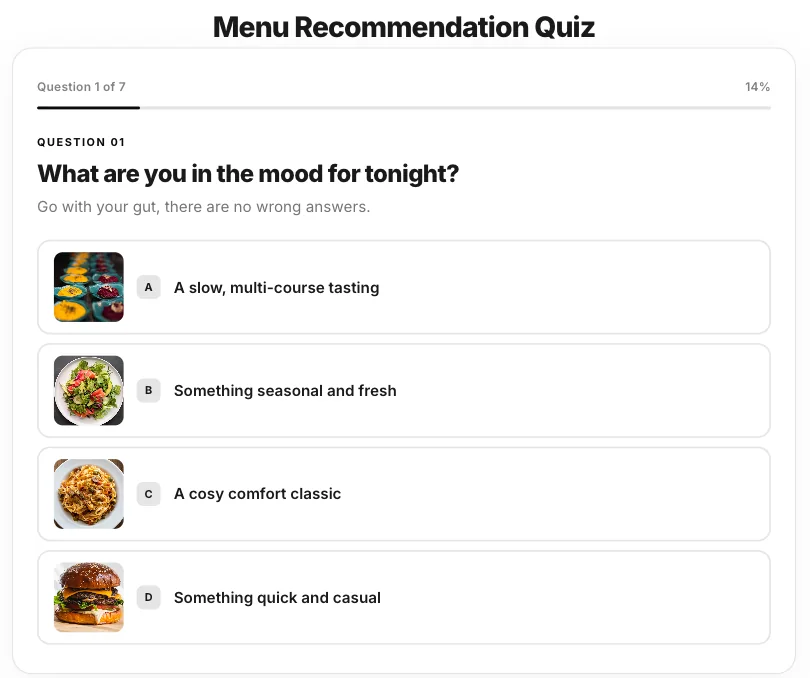
The trade off is plain. With a link, the visitor leaves your Squarespace page for the quiz page, and there is no popup or floating tab on your site. For a lead quiz that you mostly share in emails, on social media or in ads, that matters less than you might think, because those visitors arrive by link anyway. The guide to a quiz landing page covers what to put around the link on your own site so people click it.
How to check which plan you are on
Squarespace’s billing plan guide gives the path:
- Open the Billing panel and click Subscriptions.
- Click Website or Squarespace, depending on your plan. The plan name is shown under Subscription Plan, with a Change button next to it.
If the name is Personal, Business, Commerce Basic or Commerce Advanced, you are on a legacy plan. Squarespace’s legacy plans guide says new sign ups for these plans stopped in February 2026, and that Business includes “Custom code, including the code block, code injection”. Commerce Basic and Commerce Advanced include everything in Business.
Personal is not listed with custom code, but Squarespace’s premium features guide notes that some older Personal sites may have some of these features, “depending on when you signed up.” The quick test on any plan is to look for the Code Injection panel in your site settings.
Upgrading takes effect right away in most cases. The billing guide says: “If you keep your billing cycle, or switch to an annual cycle, you get access to new features immediately.” Moving from a legacy plan to a current one is one way only; the legacy guide says you can’t go back.
Trial sites and downgrades
Two situations catch people out, because the quiz works first and stops later.
- A trial site. Squarespace’s trial guide says a trial has “nearly all features, and most custom code options,” so you can connect a quiz and test it. The same guide says “Your site is private during your trial,” so the public can’t see it yet. When you upgrade, pick Core or above if the quiz is placed with code; on Basic it stops working.
- A downgrade to Basic. The premium features guide says that after a downgrade to Basic, “Code injection is disabled. The code stays in the Code injection panel for your reference, but it won’t affect your site.” JavaScript or iframe code in a Code Block also stays in place but “won’t be functional.” Since the Squarespell loader sits in Code Injection, any quiz placed through it would no longer load. Swap those spots for a button link before you downgrade.
Next step: match the quiz to your plan
If you are on Core, Plus, Advanced or a legacy Business or Commerce plan, you can use every placement: connect the site once and publish the quiz as a floating tab, a popup or inline. If you are on Basic, build the quiz anyway and put a button on your site that links to it; you can switch to an on page placement later without rebuilding the quiz. For the bigger picture of what Squarespace can do without an outside tool, read does Squarespace have a quiz feature.
The templates give you a finished quiz with scored results to start from. You can start a free trial and see what each plan includes on the pricing page.
How this guide was checked. Squarespace’s pricing page was read and captured on October 17, 2026. The Squarespace help center guides quoted above were read the same day. The live quiz screen was captured in the app on October 4, 2026, and the Squarespell changelog, read on October 17, 2026, lists no change since October 2, 2026. The Publish to website steps are as tested in the app on October 5, 2026. No quiz was installed on a Basic, trial or legacy site for this guide.