If your price follows a formula a visitor can fill in, such as a rate per guest or per square foot, use a calculator. If your price depends on things you only learn on a call, a short quiz that shows a price range and sends you the inquiry is the more honest tool. This guide helps you tell the two apart, then shows how to build a price range quiz with real scoring.
Calculator or quiz: two different jobs
Both start with a few questions. What happens next is different.
- A calculator does arithmetic. It multiplies and adds what the visitor enters and shows one number. It is right when your price really is a formula and you are happy to stand behind the result.
- A quiz sorts. Each answer carries points, and the total places the visitor in a band you defined. The result is a range you wrote, with what moves the price and a button to ask for a real quote. It is right when every job is quoted by hand anyway.
- A form collects. It sends you the answers and the visitor sees a thank you message. Nobody learns anything about price until you reply.
| Calculator | Price range quiz | Form block | |
|---|---|---|---|
| Visitor sees | One computed number | A range and what changes it | A thank you message |
| You receive | Depends on the tool | Contact details, answers, score and result | Contact details and answers |
| Best for | Fixed rates, quantities, add-ons | Custom work quoted by hand | Inquiries where price comes later |
| Risk | The number reads as a promise | A range that is too wide says nothing | Visitors leave to find a price elsewhere |
Which one your business needs
When you need a real calculator
Choose a calculator when the price can be worked out from what the visitor knows: number of guests times a rate per head, square footage times a rate, hours times an hourly fee, plus a few fixed add-ons. In those businesses the visitor expects a number, and a range would feel evasive.
Squarespace forms will not do this math for you. Squarespace’s guide Form fields explained (last updated September 2, 2026, read October 23, 2026) lists a Number field where “Only numbers are accepted”, and none of the fields it describes adds answers together or shows a total. So a calculator on a Squarespace site means a third party widget, your own script, or a plugin. Our sister site walks through those routes in how to add a calculator to Squarespace.
Squarespell Quiz is not a calculator. It scores answers and picks a result. It does not multiply rates or show a price it worked out. The range on each result is text you write. Our features page lists “price calculator” as one of five starting points when you generate a draft from your website; we did not run that starting point for this guide, and everything below uses the scoring the features page describes: “Each answer carries points. Outcomes are score bands, so the total decides the result.”
When a price range is the honest answer
Many service businesses cannot give a number before they see the job. Landscapers, interior designers, renovation firms, photographers with custom collections and agencies all quote by hand, because the price depends on details a visitor cannot judge alone.
For them a calculator causes trouble. It either shows a number so cautious that it scares people off, or a number so low that the real quote feels like a bait and switch. A range does three useful things instead:
- It answers the question. The visitor came to find out whether you are in their budget. A range tells them.
- It filters gently. Someone whose budget is far below your lowest band can leave without booking a call that goes nowhere.
- It starts the quote. You receive their answers, so your first reply can be specific instead of a list of questions.
If your services are a few fixed packages rather than custom work, the job is a little different: you want to recommend one package, not show a range. Our guide to building a which package is right for you quiz covers that case.
Step 1: Set your price bands from real past quotes
Start on paper, not in an app. Pull up your last 20 or so quotes and sort them into three or four groups that you would describe differently to a client. Each group becomes a band with a range you can defend.
Here is a made-up example we will use for the rest of this guide: a small landscape design studio. Its past quotes fall into three groups.
- Garden refresh. New planting and small repairs, usually $3,000 to $8,000.
- Garden redesign. New beds, paths and a patio, usually $8,000 to $20,000.
- Full landscape build. Grading, structures and lighting, usually from $20,000.
Two rules keep the bands useful. Keep each range narrow enough that the top is no more than about three times the bottom, or it tells the visitor nothing. And leave an open top band (“from $20,000”) rather than inventing a ceiling you cannot keep.
Step 2: Ask only the questions that move the price
List what really changes your quotes, then turn each factor into one multiple choice question. For the landscape studio that is five questions: yard size, scope of work, finish level, site condition and timing. Questions that do not move the price, such as how the visitor heard about you, can go on the lead form or be left out. Our guide on how many questions a lead quiz should have explains how to test each one.
Give every answer points, with the cheapest answer lowest. In Squarespell Quiz the points sit beside each answer in the editor, as in the template quizzes, where answers are worth 4, 3, 2 and 1.

With five questions worth 1 to 4 points each, a visitor’s total runs from 5 to 20. The studio splits that range into its three bands and checks the result against a few typical clients:
| Typical client | Answers (points) | Total | Band |
|---|---|---|---|
| Small yard, new planting | Small 1, planting 1, standard 2, flat 1, no rush 1 | 6 | 5 to 9: Garden refresh |
| Small yard, full redesign | Small 1, redesign 4, premium 4, flat 1, no rush 1 | 11 | 10 to 14: Garden redesign |
| Medium yard, patio on a slope | Medium 2, patio 3, premium 3, slope 3, within 3 months 2 | 13 | 10 to 14: Garden redesign |
| Large yard, full redesign | Large 4, redesign 4, premium 3, slope 3, within 3 months 2 | 16 | 15 to 20: Full landscape build |
Run your own past clients through the points the same way. If a job you quoted at $25,000 lands in the refresh band, the points are wrong, not the client. Move points until your real quotes land where they belong.
Know the limit of points. Adding points treats every question as about equally important. That works when each factor nudges the price. It does not work when one answer alone decides it, such as a pool or a second story. Do not bury that answer in the score: say on the results that those projects are quoted separately, and ask about them on the lead form.
Step 3: Turn each band into an outcome with a score range
In Squarespell Quiz each result is an outcome with a minimum and a maximum score. Create one outcome per band and type the band’s numbers into Min Score and Max Score. For the studio that is 5 to 9, 10 to 14 and 15 to 20. Make sure the bands touch, so every possible total lands somewhere.

Each outcome also has a CTA Text and a CTA URL, the one button on the result. For a price quiz that button should lead to the next real step, such as your quote request or booking page.
Step 4: Write the result: the range, what changes it, one button
A price result has three parts. Here is the studio’s middle band as an example:
Garden redesign. Projects like yours usually land between $8,000 and $20,000. What moves it most: the size of the patio, the materials you choose and how much grading the slope needs. Send us a few photos of the yard and we will come back with a written quote within a week.
- The range, stated plainly, with “usually” so it reads as guidance, not a promise.
- What changes it, in two or three factors the visitor can picture. This is what makes the range feel earned rather than vague.
- One button with a clear label, such as “Request my quote”, that leads to the next step.
Keep the button label and the promise in the text consistent: if the text says you will reply with a written quote, the button should not say “Book a call”. Our guide to quiz result pages that turn into bookings covers result writing in more depth.
Step 5: Ask for contact details before the range
The lead form, called the lead gate in the editor, sits between the last question and the result. It has a headline, a short line of text, the fields to collect and a button label. For a price quiz, say what the visitor gets: “Your price range is ready. Where should we send your estimate?”

Ask for as little as you need to quote: email and first name, and a phone number if you call people back. The features page, read October 23, 2026, lists email, name, phone, company and custom fields for the lead form, and says “Every lead arrives with their answers, score and outcome, so you know who to call first.”
That last part is what a form cannot give you. When the inquiry arrives you already know the yard size, the scope and the band, so your first reply can be a real starting point for the quote.

What a Squarespace form can do on its own
If you only need the details and will always reply with a price by hand, a Squarespace form block may be enough. Its guide, Form blocks (last updated September 28, 2026, read October 23, 2026), describes what it can do:
- Follow-up questions. Dropdown, checkbox, radio and survey fields can show a follow-up question when a visitor picks a certain answer. The guide adds: “It’s not possible to create a follow-up to a follow-up question.”
- One message or one redirect. After submitting, every visitor sees the same post-submit message or goes to the same page. There is no way to show a different price range for different answers.
- Storage. Submissions go to your email and can also go to Google Drive, Zapier or Mailchimp. The guide says the Mailchimp and Zapier connections are available on the Core, Plus, Advanced or some Legacy plans.
So a form collects the inquiry well but leaves the visitor without an answer to their real question. If people often email you just to ask “roughly how much?”, that is the gap a price range quiz fills. For a fuller comparison, see Squarespace form block vs a quiz and contact forms vs quiz funnels.
Mistakes that make price quizzes backfire
- Hiding the price after all. A quiz that ends with “we will be in touch” and no range feels like a trick. If you cannot share any range, use a plain form and say so.
- Ranges that are too wide. “$2,000 to $50,000” answers nothing. Split the band or ask one more question that separates it.
- Points that do not match your quotes. Test with real past clients before you publish, as in Step 2.
- Too many questions. Every question should move the price or shape your reply. Five to seven is plenty for most services.
- A different promise on the button. The button should do exactly what the result text says will happen next.
Build your price range quiz
Write your bands from real quotes first, then the questions that move the price, then one result per band with a range, the factors that change it and one button. If you would rather edit than start blank, open the quiz templates: each comes with seven questions, a lead form and three scored outcomes, and you can rewrite the outcomes as price bands. You can start a free trial to build it; the pricing page, read October 23, 2026, says every new account starts with 14 days of Pro features and no credit card. For ranking leads by how ready they are to buy, see lead scoring with a quiz.
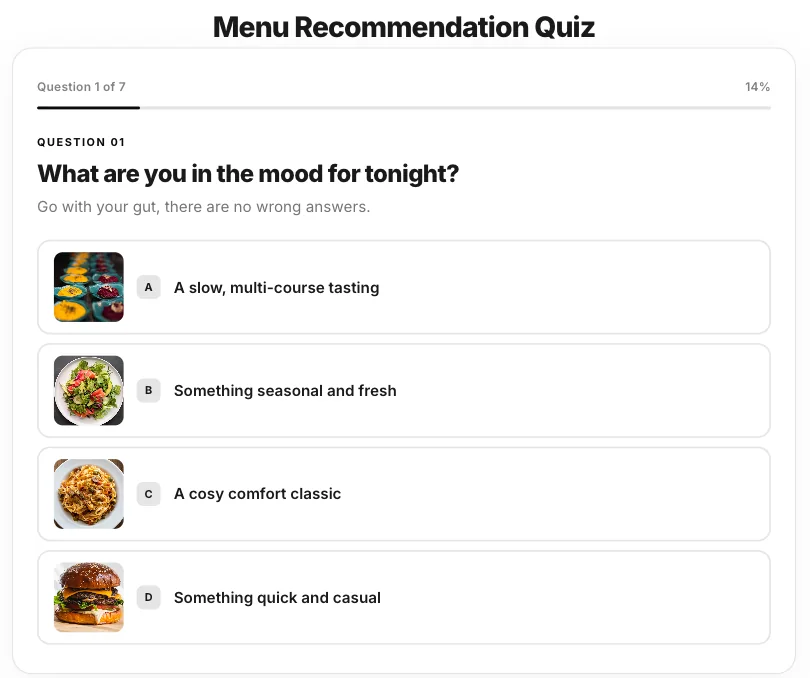
How this guide was checked. The Squarespace details come from the Form fields explained and Form blocks guides on Squarespace’s help center, read on October 23, 2026. The Squarespell Quiz scoring, lead form and trial details come from the features and pricing pages read the same day, and the changelog showed no change to these parts of the app since the screens were captured on October 3 and 4, 2026. The screens come from our reviewed library and show template and demo quizzes, not a price quiz. The landscape studio, its prices and its points are a made-up example, and the totals are simple arithmetic.
Nothing was built in the app for this guide, the “price calculator” starting point was not run, and no conversion results are claimed.