Not as a built in feature. A Squarespace course has lessons, chapters, a progress bar and a Complete and continue button, but no quiz block, no pass mark and no grades. Squarespace’s own course guide suggests a workaround for self-check questions, and an outside quiz tool can add a scored quiz around your course. Neither one turns Squarespace into a testing platform, and it helps to know that before you plan your lessons.

The short answer
It depends on what the quiz has to do. This table sums it up, based on Squarespace’s help center as read on October 18, 2026 and on what Squarespell Quiz does today.
| What you want | Squarespace on its own | A scored quiz tool |
|---|---|---|
| Students check what they remember | Yes, with accordion blocks | Yes, but more than you need |
| A score and a result for each person | No | Yes |
| Recommend the right course before people buy | No | Yes, this is what it is built for |
| Grades per student, a pass mark, or a locked next lesson | No | No |
The last row is the one to take seriously. If your course needs exams that count, you need a platform made for testing, not a Squarespace add on.
What a Squarespace course gives you
Squarespace’s Course pages guide (read October 18, 2026) describes two parts: a course overview page with the description, a Start course button, a progress bar and the list of chapters and lessons, and the lesson pages themselves.
- Lessons. Each lesson can have a video at the top and page sections with blocks below it. A course can hold up to 250 lessons.
- Progress. The progress bar “tracks how much of the course a visitor has completed”, and it moves when a student clicks Complete and continue.
- Order, but not a lock. The guide says visitors “can complete lessons in any order by selecting them from the course overview page”. Complete and continue only suggests the order you set.
- Signed in students. “Only visitors that sign up for the course and log into their account can view lesson pages.”

There is also no automatic record of who finished. Squarespace’s Building your course content guide says “it’s not possible to automatically know when a student completes a course”. Its suggestion for certificates is a form block on the last lesson that students submit, after which you email the certificate yourself.
Self-check questions with accordion blocks
The same guide says: “You can build self-guided quizzes with accordion blocks, use the title text to pose a question and the description text to provide an answer.” It works like a stack of flashcards. The student reads the question, thinks, and opens the row to check.
To build one on a lesson page, following Squarespace’s Accordion blocks guide:
- Edit the lesson page and click Add block in the section where the check should go.
- Choose Accordion and open the block editor with the pencil icon.
- In the Content tab, write each question as an item’s title and the answer as its description. Click Add Item for the next question.
- Style it in the Design tab, then click outside the block. Changes save automatically.
A few things make these work better:
- Explain the answer. “B, because the shutter speed is too slow” teaches more than “B”.
- Keep it short. Three to five questions at the end of a lesson is enough to make people think.
- Put the options in the title. For a multiple choice question, write the choices in the question text, since the accordion has no answer buttons.
Know the limits, too. An accordion block shows and hides text and nothing else. The guide describes no way to record an answer, add up a score, or tell you how a student did. Only one item can be open at a time, so a student can’t compare two answers side by side.
Where a scored quiz fits around a course
A scored quiz gives each answer points, adds them up and shows one result for the total. That is less useful inside a lesson than before and around one. Three uses fit well:
- Which course is right for me? If you teach more than one course or level, a quiz on your sales page can send each visitor to the one that fits.
- A placement or readiness check. Before someone buys, a short quiz can tell them whether to start with the beginner course or skip ahead.
- A quiz that grows your list. A free quiz on a topic you teach brings in people who may buy the course later, and you get their email.
The Coaching Readiness template in Squarespell Quiz shows the first idea. It has seven questions, each answer is worth 1 to 4 points, and totals run from 7 to 28. People who score 7 to 13 see The Foundation Course, a self paced program, while higher scores see a group program or one to one coaching. Each result has its own button.

In the editor, every answer carries its points, and you set the score range for each result. You change them to match your own courses.

Where to put it
Lessons are private, so a quiz meant for future students belongs on a page they can see. That is your sales page, your home page, or the course overview page itself. Squarespace’s guide to selling course access offers two paywall placements. With All content the overview page is hidden too. With Lessons only, “visitors can view the course overview page” and the paywall appears when they click a lesson.

To put a Squarespell quiz on a public page, you connect your website once in the app (Publish, then Sites), paste the one loader line it gives you into Squarespace’s Code Injection, and then publish the quiz as a floating tab, a popup or inline on the pages you choose. Code Injection needs a plan that includes it: Squarespace’s code injection guide said on October 18, 2026 that it “is available in the Core, Plus, Advanced, and some legacy billing plans”. The guide to which plan you need to embed a quiz goes through this plan by plan, and quiz landing page covers what to write around it.
Adding a quiz inside a lesson
If you still want a scored quiz in a lesson, the route that does not depend on any code is a link. Every live Squarespell quiz has its own web address. Squarespace’s Button blocks guide says a button can link to “other websites”, so:
- Publish the quiz in the app and copy its link.
- Edit the lesson page, add a Button block and write a label such as “Take the chapter check”.
- Paste the quiz link as the button’s URL.
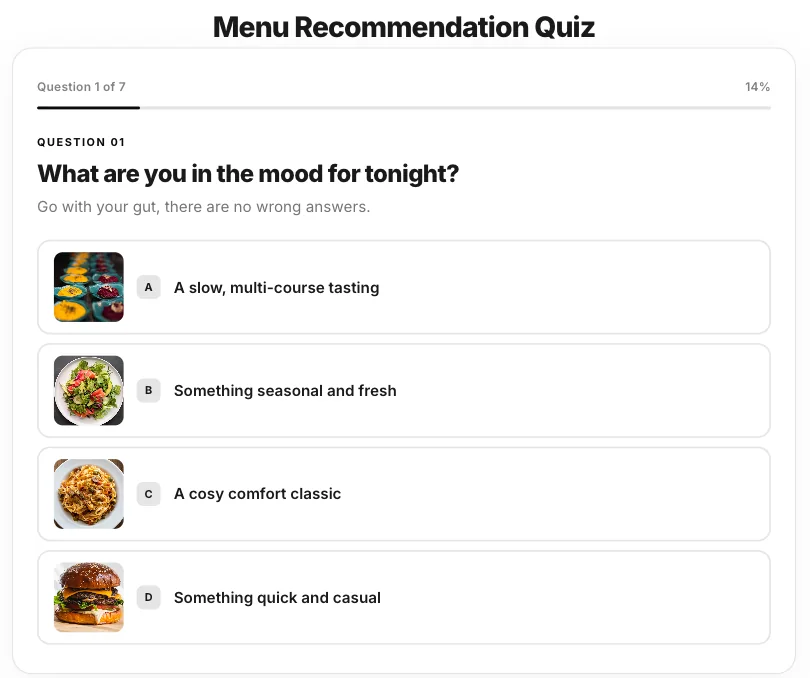
Two things to know before you do this:
- The quiz asks for contact details. Squarespell Quiz is built for lead capture, and its templates put a lead form just before the result. Your students are already signed in to your course, and they will be asked for their email again. Write the lead form text so it makes sense to them, for example “Where should we send your result?”
- The quiz doesn’t know who the student is. Nothing connects a quiz answer to a Squarespace customer account or to the course progress bar. The record you get is whatever the person types into the lead form.

What about placing the quiz on the lesson page itself, as a popup or inline? Squarespace says code in the Footer of Code Injection is added “on every page in your site”. We have not tested a Squarespell quiz on a course lesson page, so we can’t promise how it behaves there. If you try it, check the lesson while signed in as a student, in a private browser window.
What a quiz tool cannot do in a course
A scored quiz is a good way to recommend something. It is not a gradebook. Here is what neither Squarespace nor Squarespell Quiz does for a course:
- Lock the next lesson. Lessons stay open in any order, and a quiz result can’t change that.
- Keep grades per student. There is no list of students with their scores tied to their course accounts.
- Set a pass mark or limit retakes. A quiz result is a recommendation for a score range, not a pass or a fail.
- Issue certificates on completion. Squarespace can’t tell when a student finishes, so certificates stay a manual step.
If you only need students to test their own memory, accordion blocks are free and already there. Adding a scored quiz for that job adds cost and an extra email step for little gain.
When you need a learning platform instead
Some courses need real testing: a compliance training, a certification, a program where a student must reach a score before moving on, or a course you sell to companies who want reports on their staff. For those, look at a learning platform or a course tool with graded quizzes built in, and check its own pages for pass marks, retake rules, gradebooks and certificates before you move.
That is a real trade off. You would run the course on a different system, while Squarespace can still host your website and your sales page. A Squarespace course with accordion self-checks suits a course that teaches. A testing platform suits a course that has to prove someone learned.
Next step
If your students only need to check themselves, add an accordion block with three to five questions to the end of each lesson today. If you sell more than one course or level and people ask where to start, build a quiz that recommends the right one and put it where buyers can see it. The Coaching Readiness template is a ready starting point, and the pages for coaches and creators show more ways to point a quiz at a course. For the wider picture of what Squarespace can do on its own, read does Squarespace have a quiz feature.
You can start a free trial and compare plans on the pricing page.
How this guide was checked. Every statement about Squarespace Courses, accordion blocks, button blocks, paywalls and Code Injection comes from Squarespace’s help center, read on October 18, 2026, and the three help center images were captured that day. The template results were captured from the public Coaching Readiness template page on October 18, 2026. The three app screens are real screens of Squarespell Quiz captured on October 4, 2026, and the Squarespell changelog, read on October 18, 2026, lists no change since October 2, 2026. The publishing steps are as tested in the app on October 5, 2026. We did not build a Squarespace course or put a quiz on a lesson page for this guide.